Introducing Tokie Skills: Let AI Agents Manage Your Folders
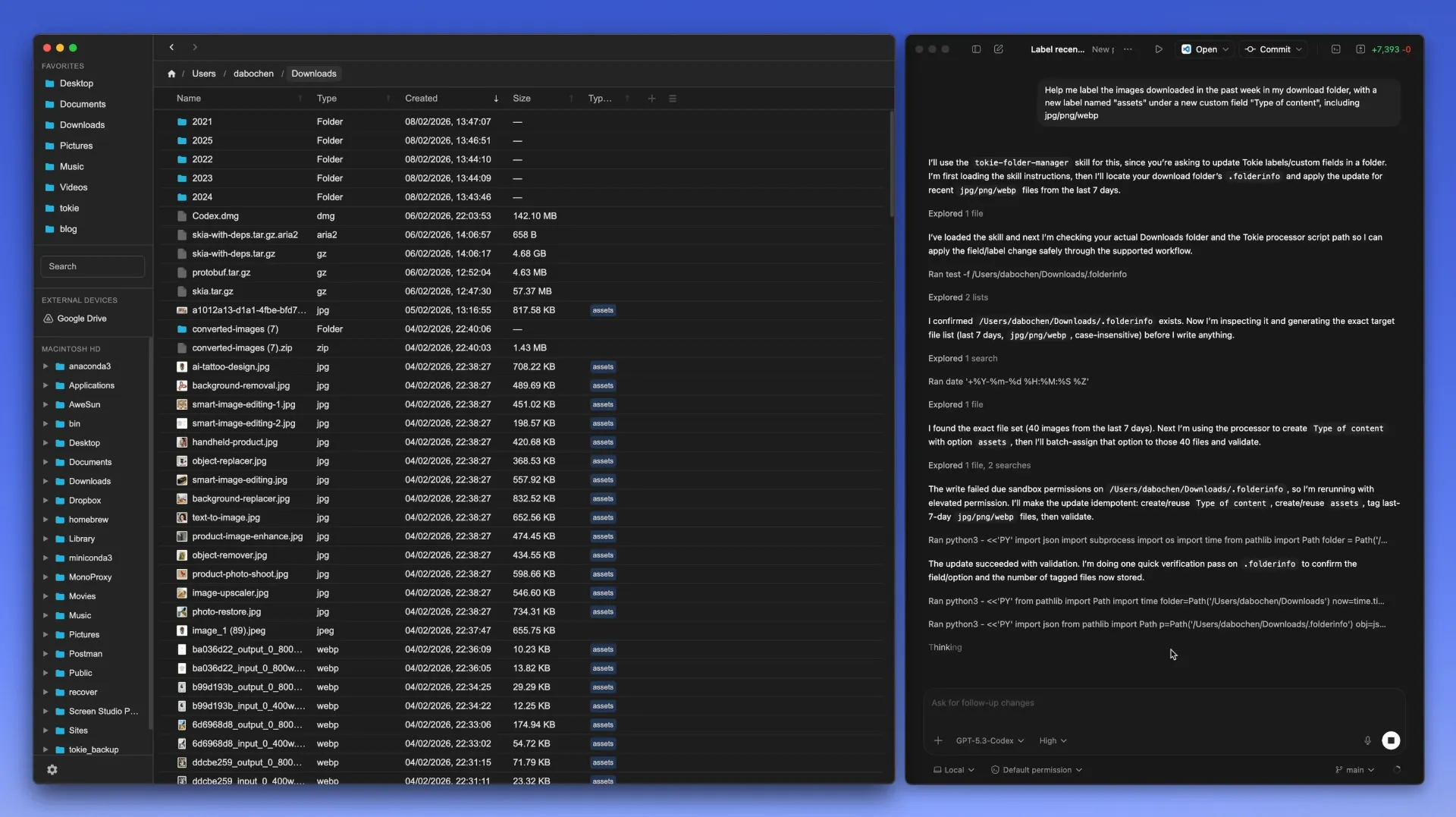
Your folder is the best context for your agent. But until now, folders were just dumb storage buckets.
Tokie Skills changes that. It's a set of instructions that teaches AI agents how to work with Tokie folders. Install the skill globally with any agent tool, and your AI agent — whether it's Claude Code, Cursor, Cowork, Codex, or OpenClaw — can create custom fields, organize layouts, write content, and even build interactive widgets inside your folders.
Turn Folders into Dynamic Workspaces
Tokie Skills enables your AI agent to do things that were previously impossible with a standard file system. By editing the hidden .folderinfo configuration files that Tokie uses, agents can transform any folder into a purpose-built tool.
1. Create and Manage Custom Fields
Ask your AI agent to set up custom fields for any folder — text fields, number fields, and select fields with color-coded labels. The agent can create, update, and delete fields and their options, turning any folder into a structured database.

This is perfect for:
- Project Tracking: Status labels, priority flags, and due dates.
- Content Calendars: Platform tags, publishing stages, and content types.
- Asset Libraries: License types, resolution tags, and usage rights.
Let the agent handle the heavy lifting of organization so you can focus on the creative work.
2. Control Layout & Write Content
The AI agent can create markdown files and write content directly into your folders. It can also control the layout — setting the order of files, expanding or collapsing inline previews, configuring which columns are visible, and adjusting column widths.

Your agent handles the entire folder structure. You can even create automations in agents like Codex for periodic cleanups or specific tasks within your folders. Let it take notes on the progress, and you can check the status directly in the folder with inline markdown.
3. Build Widgets & Tools
Using the agent's coding skills, it can create HTML widgets and interactive tools that live inside your Tokie folders. Think calculators, dashboards, status boards, or any custom tool your project needs — all rendered inline within the folder view.

The agent writes the code, and Tokie displays it. This makes your folders no longer just static storage, but dynamic workspaces for both you and your AI agent to collaborate in.
How It Works
- Install the Skill: Download the Tokie Folder Management skill and point your AI agent to it.
- Ask Your Agent: Tell your AI agent what you want — "set up a project tracker", "add status labels", "create a dashboard widget". It reads the skill and knows how to execute your request.
- See it in Tokie: Open the folder in Tokie and see the changes live — custom fields, organized layouts, expanded notes, and interactive widgets.
Try It with These Prompts
Not sure what to ask? Here are four ready-to-use prompts you can paste into your AI agent once the skill is installed.
Downloads Inbox Triage
Use Tokie skills to turn my Downloads folder into an "inbox" view: add a Status label (To Process / Keep / Archive) and a Type label (Image / Doc / PDF / Zip / Other), then sort so To Process shows first. Create an INBOX.md and expand it inline with a short triage checklist of the biggest/newest files and what I should do next. Folder path:.
Project Delivery Folder
Use Tokie skills to organize this project folder for delivery: add labels for Deliverable type (Design / Spec / Assets / Other) and Stage (Draft / Review / Final), and sort so Final is on top. Generate a DELIVERY.md (expanded inline) that lists what to send and what still needs review. Folder path:.
Research Reading Queue
Use Tokie skills to turn this research folder into a reading queue: add labels for Topic and Read status (To Read / Skimmed / Done), then sort so To Read items rise to the top. Create an INDEX.md (expanded inline) that groups sources by topic and leaves space for 1–2 sentence takeaways. Folder path:.
Content Pipeline
Use Tokie skills to make this content folder a simple pipeline: add labels for Platform and Stage (Idea / Draft / Edit / Ready / Published), and sort by Stage so I can see what's next. Create a PIPELINE.md (expanded inline) with a quick checklist for each stage and a "This week" section. Folder path:.
Getting the Skill
The Tokie Folder Management skill is available in our skill library. You can also install the skill directly from within the Tokie app:
- Click the Skills button on the bottom-left corner of Tokie.
- In the popup panel, click Export Skills.
- Download the skill folder to your project.

Ready to transform your folders? Download Tokie today and start building your local-first, AI-powered workspace.
Ready to try Tokie?
Transform your file management experience with Tokie's powerful features.